Setup guide for ZSH in GitHub codespaces
Updated At
Lore
I was a hard-core user of github’s codespaces feature since the day it was launched, and it’s a great choice for people with a low-end device or who need a few extra resources for a specific project. The only thing that left me unsatisfied was the bare-bones bash shell slammed on my face on every codespace.
So let’s move towards solving these issues. We’ll be setting up ZSH (Z-Shell) as an alternative to bash, starship for a modern-era terminal look, and then a few must have ZSH plugins to 10x your experience.
This guide is not just limited to codespaces setup. Anyone trying to configure ZSH for a minimal day-to-day usage can follow the guide as well.

Setup Starship
First of all, we’ll be styling our shell to have the modern-era look and feel, and it’s not that boring dollar sign slammed on your face again. Let’s install starship.
Install starship
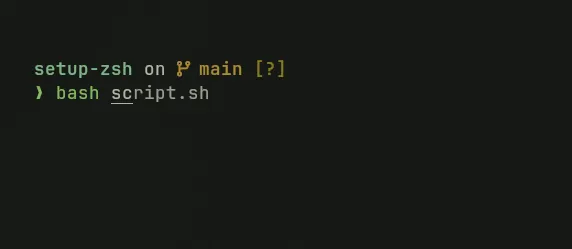
For some reason, you won’t be able to install starship in ZSH at the time of writing this. You can switch to bash for this one.
curl -sS https://starship.rs/install.sh | shSetup the config in the ZSH file
echo "eval \"\$(starship init zsh)\"" >> ${ZSOTDIR:-$HOME}/.zshrcYou can go over more themes on starship’s website and I personally like the Nerd Font Preset and that’s also the one on the banner of this guide.
Installing ZSH Plugins
This guide is to get the work done as quickly as possible so we’ll be relying on directly installing and invoking plugins from .zshrc directly. If you are following this guide for a day-to-day usage then I’d recommend you to use Oh My ZSH for invoking plugins so that it’s way easier to manage plugins.
Auto Completions in ZSH
We’ll be setting up auto completions in ZSH, so that you can quickly reuse past used combinations by hitting tab without having to write them every time. We’ll be using ZSH autosuggestions plugin for this one.
- Clone the repository
git clone https://github.com/zsh-users/zsh-autosuggestions ~/.zsh/zsh-autosuggestionsYou can change the path to anything you want. Here we’re using
~/.zsh/zsh-autosuggestions
- Add the invoke script to the ZSH config
echo "source ~/.zsh/zsh-autosuggestions/zsh-autosuggestions.zsh" >> ${ZSOTDIR:-$HOME}/.zshrcSyntax Highlighting in ZSH
You must be bored by now staring at that boring mono-colored grey text on your terminal, so let’s add some colors to it. We’ll use ZSH Syntax Highlighting plugin to get a colorful looking shell.
- Clone the repository
git clone https://github.com/zsh-users/zsh-syntax-highlighting.git ~/.zsh/zsh-syntax-highlighting- Add the invoke script to the ZSH config
echo "source ~/.zsh/zsh-syntax-highlighting/zsh-syntax-highlighting.zsh" >> ${ZDOTDIR:-$HOME}/.zshrcNote: If you see `Systemd` in the terminal and want to remove it then follow the next command. This one is specific to codespaces.
mkdir -p ~/.config && printf "[container]\ndisabled = true" >> ~/.config/starship.tomlVoila! You are ready to use ZSH with Starship and ZSH Auto Suggestions and Syntax Highlighting.
Bonus: Let’s automate the process
Instead of manually doing all this process again and again for every new codespace you create, we’ll be setting up global configs for codespaces to automatically configure your ZSH upon creation.
- Go to your GitHub and create a new repository named `dotfiles`, make sure it’s in format
https://github.com/<your username>/dotfiles. - Create a file
setup.shon the root of your repository. - And paste the following content into it:
# Install and configure Starship
curl -sS https://starship.rs/install.sh | sh -s -- --yes
echo "eval \"\$(starship init zsh)\"" >> ${ZSOTDIR:-$HOME}/.zshrc

# Install and configure ZSH Auto Suggestions
git clone https://github.com/zsh-users/zsh-autosuggestions ~/.zsh/zsh-autosuggestions
echo "source ~/.zsh/zsh-autosuggestions/zsh-autosuggestions.zsh" >> ${ZSOTDIR:-$HOME}/.zshrc

# Install and configure ZSH Syntax Highlighting
git clone https://github.com/zsh-users/zsh-syntax-highlighting.git ~/.zsh/zsh-syntax-highlighting
echo "source ~/.zsh/zsh-syntax-highlighting/zsh-syntax-highlighting.zsh" >> ${ZDOTDIR:-$HOME}/.zshrc

# Remove the `Systemd` message in starship terminal
mkdir -p ~/.config && printf "[container]\ndisabled = true" >> ~/.config/starship.toml
And you’re done! For reference you may have a look at my dotfiles.